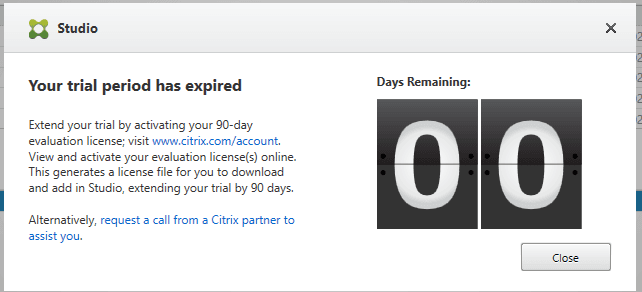
Citrix Licensing Manager Issue: Licenses Kicked Out in Version 11.17.2.0 Build 51000


Recently global issue happened where license is missing from License manager. When i try reapplied the license, it keeps kicking and deleting.
Issue Description
Users experience access denied

The Citrix License Manager interface does not show the expected licenses.
Applications relying on Citrix licenses become inaccessible.
The issue appears to be widespread among those using Citrix License manager version 11.17.2.0 build 51000.

Solution
1.1 Back Up License Files
Navigate to:
C:\Program Files (x86)\Citrix\Licensing\MyFilesCopy all
.licfiles to a safe location.
1.2 Export Citrix License Server Settings
Open Registry Editor (
regedit).Go to:
HKEY_LOCAL_MACHINE\SOFTWARE\Citrix\LicensingRight-click on the Licensing folder and choose Export.
Save the file as
Citrix_License_Backup.reg.
1.3 Backup the License Server Database
Navigate to:
C:\Program Files (x86)\Citrix\Licensing\LSCopy the db folder to a backup location.
Step 2: Uninstall Citrix Licensing Manager
To successfully downgrade, you must remove the newer version first.
2.1 Stop Licensing Services
Open Services.msc and stop:
Citrix Licensing
Citrix License Management Service
2.2 Uninstall Citrix Licensing Manager
Go to Control Panel > Programs and Features.
Find Citrix Licensing Manager.
Click Uninstall and follow the prompts.
2.3 Delete Residual Files
After uninstalling, delete leftover files:
Navigate to:
C:\Program Files (x86)\Citrix\LicensingDelete any remaining files.
Remove Citrix Licensing registry entries:
HKEY_LOCAL_MACHINE\SOFTWARE\Citrix\LicensingRestart your server.
Step 3: Download and Install Version 49000 or Lower
3.1 Download the Older Version
Visit Citrix Download Center.
Search for Citrix Licensing Manager 11.16.6.0 build 49000 or your preferred older version.

Download the .exe installer.
3.2 Install the Older Version
Run the installer with Administrator privileges.
Follow the setup wizard and complete the installation.
Restart your server after installation.
Step 4: Restore Backups and Reconfigure
4.1 Restore License Files
Copy the .lic files from your backup to:
C:\Program Files (x86)\Citrix\Licensing\MyFiles
4.2 Restore Registry Settings
Double-click the
Citrix_License_Backup.regfile.Confirm the merge.
4.3 Restore Database Files
Copy the backed-up db folder to:
C:\Program Files (x86)\Citrix\Licensing\LS
Step 5: Restart Services and Verify
5.1 Restart Licensing Services
Open Services.msc.
Start:
Citrix Licensing
Citrix License Management Service
5.2 Verify License Availability
Open Citrix Licensing Manager via:
https://<your-license-server>:8083Ensure licenses are recognized and assigned correctly.
5.3 Test License Assignment
Run:
lmstat -a -c @<LicenseServerName>Confirm licenses are displayed.